





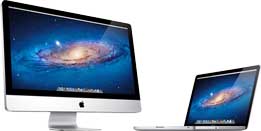
  Meet Macintosh Computer of choice for professionals of all types and creative individuals in general, the combination of first-rate hardware and Apple's MacOS makes other platforms obsolete. No need of anti-virus nonsense, it has built-in maintenance, automated backup and plenty of custom setup options, too.
Arrange your Mac to suit your needs: Explore System Settings (or System Preferences) under Apple menu in MenuBar. The first icon - named "General" - has an option to always show scroll bars (or not), set colors and more. Set desktop picture (wallpaper) and screen saver in "Desktop & Screen Saver". Time Machine is the built-in backup app. Other System Prefs include audio settings, accounts, auto-update (best set to OFF), and other machine-wide settings.
In addition to System settings, each and every app has its own set of specific settings under its app-named menu.
Whether you're new to the Mac or new to computers, it's helpful to learn basic terminology; like the Desktop, the Finder (directory), MenuBar and the Dock which contains one-click shortcuts to frequently used apps/files:  Moving cursor over icons in the Dock shows name of each
Icons play an important part in identifying files and file types, too. There are application icons, document icons, sound and image icons (to name a few), and there are also folders used to group and organize them. A good way to get acquainted with the Finder is to explore these links:
Switching from PC to Mac?
Be prepared to ditch old habits and learn new shortcuts. Skip installing drivers (plug it in and try it), ditch anti-virus apps and automate backup. That's just for starters. Here are some tips from the pros at Apple:
Welcome aboard!
|

 Backup It may not be your first priority, but having and maintaining a proper backup can save a lot of grief in the event of a machine failure. The idea is to have two copies of everything, one on the Mac and a copy on an external drive. See section on Backup Plans & Options (in left sidebar) for details.
Establish a filing system
Storing files on the Desktop is a bad habit and far too common. Your Operating System provides special folders with names that suggest intended use; the Applications folder for apps, Documents folder for docs, and folders for Downloads, Movies, Music and Pictures. Use them.
There are a myriad of scams out there, including a host of maintenance programs that promise to speedup or fix up Macs; some are malicious, most are unhelpful and none are necessary. Same goes for anti-virus apps that will waste space and CPU cycles but never find a virus. Nothing can be installed on a Mac unless you enter your password and install it.
Record all passwords (on paper?), starting with your machine's login password, and keep them somewhere safe. You'll eventually have hundreds of 'em, if you don't already. Write them down!
Drag files you don't want to keep into the trash, and empty the trash. Same goes for junk and unwanted emails; delete them while you know what they are so you don't have to sort thru them later. (Best to stay out of folders with "Library" in their name, as most of these contain System files serving specific functions.) |
 I tried several times to install a driver for my [gizmo], why won't it work? We see a lot of .exe files downloaded on Macs, but these are Microsoft Windows files that are useless on a Macintosh. You probably don't need a driver; try connecting that gizmo and see if it doesn't work. If you must install a driver for some reason, download it from gizmo's manufacturer or from Apple's AppStore and select driver appropriate to your device and your Operating System.
About software installation/reinstall:
Installers (generally speaking) do one of three things:
How can I get a disk out of a CD/DVD drive?1) They install software regardless of previous installations, replacing all existing files. 2) They check for previously installed software and may replace and/or update existing files with new ones. 3) They might skip past any existing files and only install those that are missing or need update. It depends entirely on how installer was written, and there's usually no way to know what it will do until it's after install is complete. It may be necessary to delete or uninstall previous version before installing or reinstalling same. Complex installers should include an uninstall option to make removal easy; others are simple drag and drop. Start from OFF, hold mouse/trackpad down during startup. Disc should eject before desktop appears. If not, bring it in and have it removed.
My email settings are correct. Why can't I send/receive email? If you haven't changed any network/mail settings on your Mac, and email worked previously, service provider may be offline temporarily; wait awhile and try again. If you have a notebook, take it someplace where Wifi is available and try it there. Or, you might try resetting modems and routers by removing power to each for a few seconds. Messing with network settings is usually a bad idea. Keep settings recorded with passwords.
Do I need an anti-virus program? No. The vast majority of Mac users today have never encountered a real virus. Ever. Anti-virus software will only get in the way, and bad ones can cause trouble and needlessly consume space. See our Security and Protection page (sidebar) for more info.
NOTE: If you're running MS Windows on a Mac, you do need anti-virus to protect the Windows partition. Do I need to run Software Update (System Prefs)? Updates are almost always a good thing; upgrades can be another matter. So, updates to existing OS yes, upgrades to a new OS maybe not. Auto-Update is now on by default; recommend turning it OFF.
Upgrading your OS on an Intel CPU Mac adds Rosetta2 emulation to the mix after OS 10.15 Catalina because later Systems are Apple CPU native.
Always backup first. Make a proper backup on an external drive before any major change or install. Reverting to a backup may be your only option for recovery if something goes wrong. What does "Disk is almost full" mean? It means you're about to run out of storage space on your startup drive, which is considered full with 10% of capacity remaining. (About This Mac > Storage.) If this happens and you ignore the warnings, you'll soon notice your machine running slow. It may refuse to startup eventually.
|
 Yes, you can run Windows on a Mac. There may still be a few situations where some key database or software requires a version of Windows to operate. Experience suggests that running Windows on a Mac - while possible - can be costly in terms of cost and trouble. We recommend picking up a cheap PC to run that Windows app, and using the Mac for everything else. That said...
Best way (at the moment) for running Windows apps on a Mac may be to create a "virtual machine" solution using VMWare's Fusion or the Parallels Desktop product. Apple's own Boot Camp (free, included with the MacOS) creates a logical partition on your drive that allows you to switch between platforms via restart. A licensed copy of Windows with a valid registration key is required. Add that expense to virtual machine software and you'll be paying about the cost of a cheap PC with Windows installed. The other major problem with running Windows on a Mac is the fact that Microsoft Windows brings all of its virus and malware vulnerabilities with it. Degrees of separation.
Most apps have two versions - one for Windows, another for Mac. Cross-platform apps may be able to read/write their own file types on both Mac and PC, but don't count on it. There's always some way to transfer files, but finding the easiest option may require some research. There are also notable exceptions: Some popular bookkeeping apps are problematic, and some of these cannot even read their own files from a previous version, let alone import data between platforms. Best to check OS requirements for critical apps, and check file import/export options between versions and platforms. This info should be available on program's web site. The modern version of many apps these days is the online model, where you pay a monthly fee for access to the program on the internet - rather than purchase and install the app onto your computer. This approach may get around compatibility and update issues, as long as you are running the latest OS version and have sufficient bandwidth (speed). Before you commit to such an arrangement, we recommend exploring other apps that require monthly fees and internet access. Best choice: Make a clean break.
People who say they only use email and internet should jettison everything Microsoft and replace MS apps with those from Apple. Export your docs, photos, addresses, emails and bookmarks to a backup, then import these to appropriate Mac applications (which is easier than you may think). There are plenty of apps available for Macintosh to replace whatever software you might currently use, many of which are included with the MacOS. If you must run a particular program under Windows, consider taking everything else off your old PC and dedicating that machine exclusively to running your critical Windows program. Import your other data to the Mac and use the Mac for online ops, communications and everything else.
For more info: |
 Passive security and the MacOS ("Passive" excludes encryption and the more severe security tools.)
Dealing with logins and passwords is a necessary annoyance, so make it as easy as practical. Apple's OSX has a surprising amount of passive security built in, with additional security measures available. It's easy to ignore security entirely - but don't. If automatic login is on (System Prefs > Users and Groups > Login Options), you'll be able to skip login altogether, which may be fine for desktop machines in secure locations, but is never a good idea on portable devices. Another drawback to automatic login is a tendency to forget passwords. Write 'em down somewhere safe.
Password-breaking programs and magic plug-in gizmos that retrieve secret codes are the stuff of fiction - it only happens in Hollywood. Modern algorithms can encrypt a password right out of existence, and a lost password can effectively stop you in your tracks. We cannot "recover" a lost password, or "reset" your password. If that was possible, password protection would be worthless. Your login password is used to startup your Mac, install software and make changes. If encryption is turned on, it might use yet another password. Then there's email passwords, your AppleID, and a myriad of accounts, web sites and logins. Please make a hard copy of all passwords and logins - along with your email, router and network settings - and keep it somewhere safe.
Yes..... and no. You've must have passwords for email, discussion groups, online accounts, and computer login account. If you share your machine with anyone - your spouse, kids, friends, anyone - you should each have your own login account and password. It's easy to setup and will prevent multiple users from getting in each others way while keeping each secure. NOTE - An obscure legal fact regarding password protection: A password, passcode or passphrase is considered protected information and thus requires a court order to obtain. Fingerprints or facial recognition is not considered "information" and is not protected.
Don't give up, take your best guess: Try upper case, lower case, spaces, no spaces, every possible password and combination you can think of. If you have to, make a list of possibilities and go down the list checking off the ones you've tried. If you find it, get a tattoo. Otherwise, there isn't much to do except erase machine and start over from scratch. |
 Network options are determined by available ports and protocols, and by OS version on older machines.
Best choice is Wifi or Ethernet which allows multiple Macs to share files, printer and internet connection. Cat5 Ethernet cables are readily available, and a quick, small network is easy to setup on modern Macs:
 For a small office network (LAN) of reasonably current Macs, use ethernet cable and/or AirPort (aka Wifi) to connect machines to a central router or gateway in a star configuration. Number of router ports dictates maximum number of hardwired machines. Wireless routers use a variety of protocols depending on age. Oldest is 802.11b, then comes 802.11g, then 802.11n, etc. Most wireless routers are backwards-compatible with previous standards, however there is a catch: The entire network will down shift to lowest protocol in use. In other words, the machine running oldest (slowest) protocol sets the standard for all.
Simple 2-Mac crossover network  If a crossover cable is required - which isn't likely - it can be made from a normal ethernet cable. Macs automatically detect and adjust, but old 10 to 100Base-T machines, including older PCs, may require a crossover cable to enable networking. Look closely at the illustration (right) and you'll see that all four orange and green wires are reversed in a crossover cable, as compared to a normal ethernet cable (above). To make a crossover cable: Cut the RJ-45 connector off at one end, rearrange the wires as shown, and install/crimp a new RJ-45 connector.
Other network options
Two machines may be connected using Firewire, Thunderbolt or Lightning cables (and adapters as necessary). Machine booted in Target Disk Mode will appear as an external drive on the host machine. Sneakernet:
When all else fails, you may be reduced to this, the oldest "networking" technique of all: Write files to removable media (flash drive, CD, DVD, etc.), then walk it over to second machine and connect to read/copy files. Simple and quick if an actual network is not required. |